
Stream your D&D map to the table TV with dm-screen.com
Set up a dm-screen.com game display on your table TV, select the main screen, position your map, and reveal fog from your laptop.
To show your D&D map on a table TV with dm-screen.com, open the campaign’s game display on that screen and keep the DM interface on your laptop. A cable connection with an extended desktop is a straightforward starting point. Changes to the active map and fog appear in the game display while you control the session separately.
Here, “stream” means sharing the live game display with your table. dm-screen.com isn’t a native Chromecast or AirPlay receiver. The connection to the TV comes from your computer, browser, or compatible display hardware.
1. Connect the TV and extend the desktop
You’ll need a computer with a browser, internet access, a TV, and a compatible display cable or adapter. Connect the TV and select the matching input. Use an extended desktop so the laptop and TV can show different windows.
On Windows, press Windows + P and choose Extend. On a Mac, open System Settings > Displays, select the TV, and use Use as to choose an extended display. See the official Windows display guide and Mac display guide if the TV isn’t arranged as expected.
You can also run the display in a browser on another computer connected to the TV. That computer needs internet access and a signed-in account with campaign access. A built-in smart TV browser isn’t a guaranteed substitute.
2. Prepare and activate a map
Sign in to dm-screen.com and create or open your campaign. In Game Maps, add a map with a useful name and upload your file. Still images can be JPEG, PNG, GIF, or WebP; MP4 and WebM are supported for animated uploads. Use a map you have permission to upload. The app doesn’t supply an adventure library with this workflow.
Activate the map you want the table to see. Before showing an unexplored dungeon, check its fog state in the editor and cover the areas you want hidden. Prepare this while the TV is still out of the players’ view.
3. Open the right game display
Open Game screens in your campaign. Choose Full screen map for the map and overlay, or Open game screen for the combined map and character-card layout. The option labelled Player screen shows character cards and the overlay without the map, so it isn’t the choice for this setup.
Move the newly opened tab into a separate browser window and drag that window to the TV. Use the browser’s full-screen command if you want to hide its surrounding controls. Return to Game screens on the laptop and find the TV session under Live screens. Choose Set as main screen for that session. The app uses its dimensions to guide the shared view.
If you have several display windows open, close the extras during this first setup so it’s clear which session belongs to the TV.
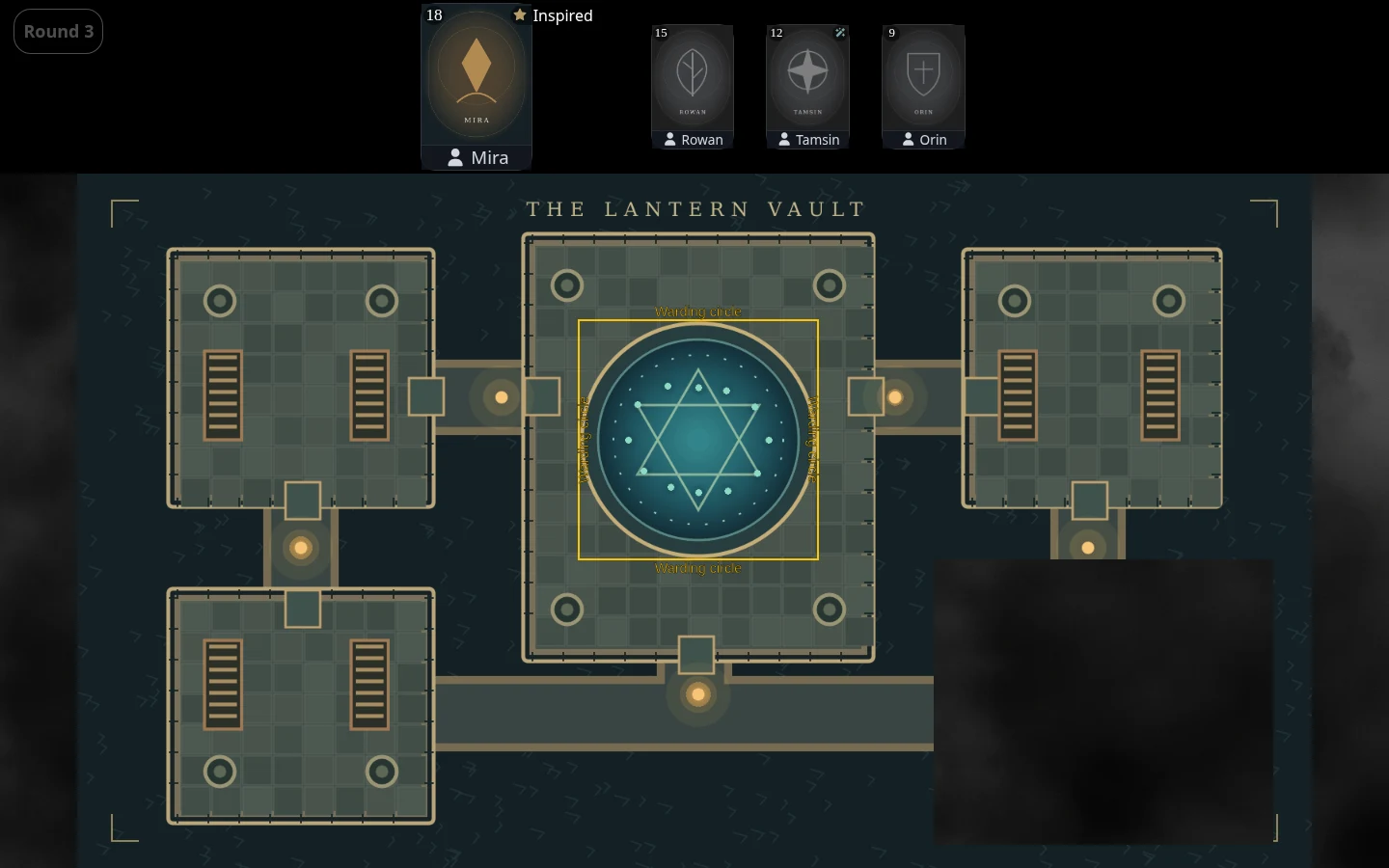
4. Position the map from the DM controls
Open the active map on your laptop and use Screen position to frame the area the party needs. Check the actual TV while adjusting position and zoom. The map editor’s working view and the table’s view serve different purposes; don’t assume zooming in on the editor is the same as framing the shared display.
If you use physical miniatures, measure a square on the TV after setting the view. For a one-inch grid, adjust until a square measures one inch. Recheck after changing zoom or display layout. A map fitted to the screen isn’t automatically at miniature scale.
5. Reveal the next room and verify the result
Select Fog of war in the map toolbar and use the eraser to uncover an area. Watch the TV to confirm that the reveal appears and the surrounding rooms remain hidden. Fog is manual; physical movement doesn’t calculate visibility.
Before players arrive, switch to another prepared map and back, confirm the intended starting view, and check that your DM controls stay on the laptop. If the TV is black, inspect the active map and fog coverage before assuming the connection failed. If changes stop appearing, check the display’s login, connection, and Live screens status.
For wireless options, use the general screen-sharing guide. Once your display is working, the map-preparation workflow helps you get the next session ready.