
Easy map management on your table TV
Prepare, name, position, and reveal your dm-screen.com maps before game night, with a practical workflow for physical miniatures and scene changes.
Easy map management starts before you turn on the table TV. Give each scene a recognizable name, prepare what players can see, and check the displayed scale before anyone puts miniatures down. In dm-screen.com, your campaign holds the maps while the active map supplies the shared scene.
This guide assumes your display already works. If you’re still connecting it, start with streaming a D&D map to your table TV.
Prepare scenes you can find in a hurry
Name maps for the place or encounter you’ll recognize during play. “Old mill, ground floor” is easier to identify than “final-map-v4.” If you expect to use several levels of one location, keep the location name consistent across them. These are naming conventions you apply yourself, not an automatic folder or tagging feature.
Upload the scenes you’re likely to need and include a useful fallback, such as a road or clearing. Use your own artwork or files you have permission to upload. The sample maps shown on this website demonstrate the interface; they aren’t an adventure library included with your account.
For each scene, decide whether it needs a tactical map at all. A regional map can help the group choose a route without requiring miniature scale. An illustration may do more for a conversation with an NPC than a gridded room.
Separate preparing a map from showing it
Open a map to prepare it, and deliberately activate the one you want on the shared display. Activation changes the scene for the table. Rehearse map switches before the session so you know which scene appears and how it is framed.
Use the Fog of war controls to cover undiscovered areas and reveal the starting space. Check your work in the game display, where hidden areas should stay hidden. The editor gives you the context needed to operate the map; the TV is the final check of what players see.
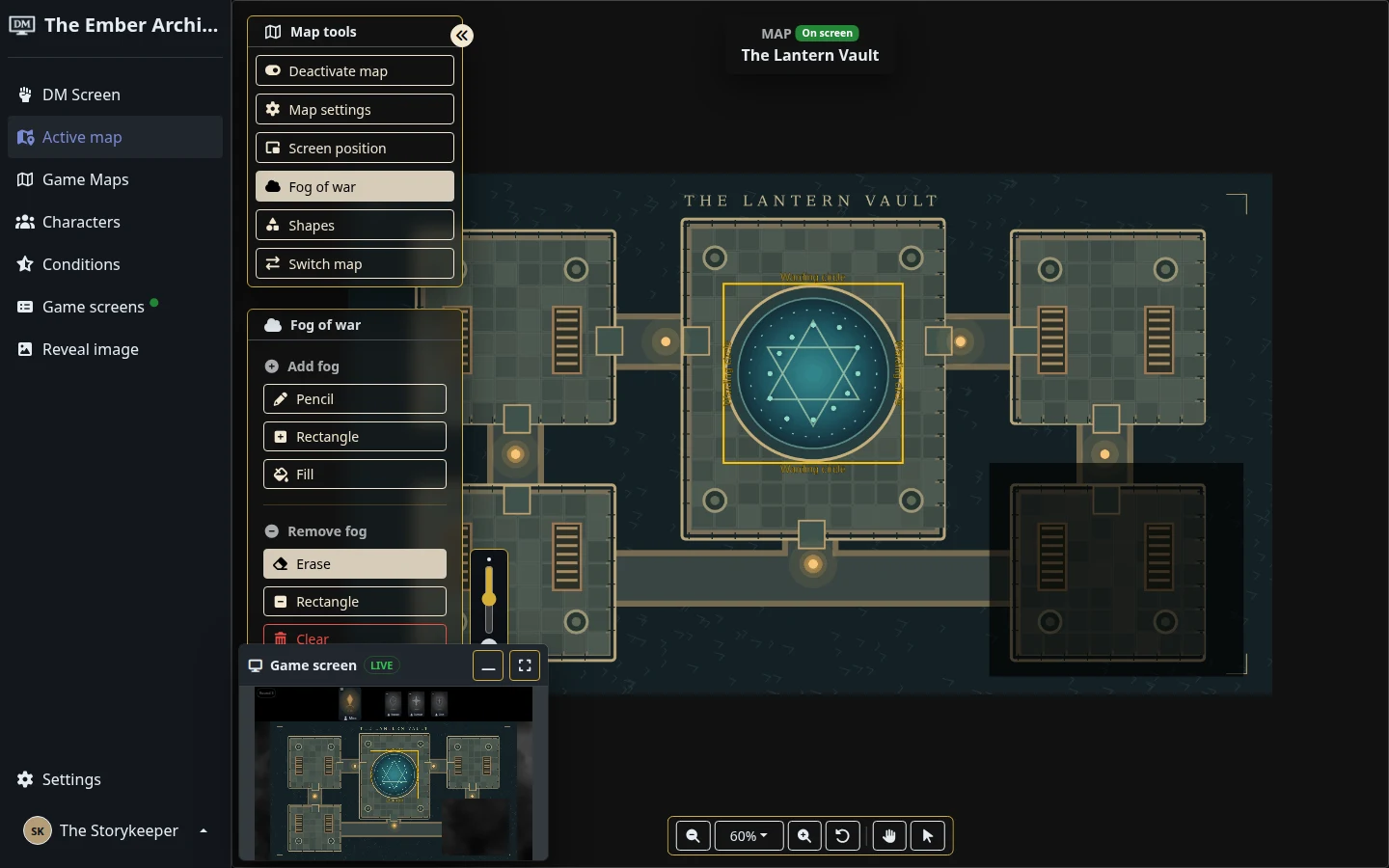
Fog is controlled by you. It doesn’t calculate line of sight, follow physical miniatures, or decide whether a character can see around a corner. That makes your reveal plan worth preparing: expose a room, a corridor, or another area that matches the information you’re giving the group.
Frame the encounter at the size you’ll play
Choose the display layout before fine-tuning the map. In Game screens, Full screen map reserves the display for the map and overlay; Open game screen includes character cards. Select the TV with Set as main screen, then use Screen position in the map tools to frame the scene.
If a miniature base is meant to occupy a one-inch square, measure a square on the actual screen. For example, six squares should span six inches when that’s your chosen scale. A ruler catches a small scaling error more clearly across several squares than across one.
A large dungeon may not fit at miniature scale all at once. Show the current encounter area and move to the next area when needed. If physical minis are sitting on the screen, agree their positions before panning or zooming: the image moves, but the models don’t move with it. After repositioning the map, place them back relative to recognizable terrain.
Use the same check after changing the TV resolution, browser zoom, or game layout. This is manual measurement, not an automatic physical-grid calibration feature.
Make scene changes part of your preparation
Try this rehearsal with two maps:
- Activate the first scene and check its starting fog and framing on the TV.
- Reveal one area and confirm the change on the shared display.
- Switch to the second map and check its name, orientation, and visible area.
- Return to the first and inspect the saved state. Restore the fog you want for the actual session.
That last step prevents a practice reveal becoming an accidental spoiler. Avoid activating an unexplored map in front of the group until you’ve checked it.
If you’re using animated maps, test the actual file in the display browser. dm-screen.com accepts MP4 and WebM as well as image uploads, but a supported file type alone doesn’t guarantee smooth playback on every device. Keeping a still version of the artwork available gives you another option for the session.
Keep illustrations separate from battle maps
Use reveals for a prepared portrait, clue, or scene illustration when you want to show something over the game display. Hide the reveal when you’re ready to return to play. You don’t have to turn every piece of visual information into the next active battle map.
Before the group arrives, confirm the active map, starting fog, main-screen selection, and visible area. Then operate from the DM interface during play. The preparation should leave you deciding what the party discovers, with the next scene ready when they get there.