
D&D Beyond vs dm-screen.com for in-person D&D
Compare D&D Beyond and dm-screen.com for a shared table TV: maps, spectator views, character tools, fog of war, and session preparation.
If your group plays around a table, the choice depends on what you want the software to handle. D&D Beyond connects its Maps virtual tabletop to your D&D Beyond library. dm-screen.com focuses on running a shared game display from separate DM controls, using maps you upload. Both can put a map in front of an in-person group.
This comparison is written by dm-screen.com and checked against the linked product documentation on 27 September 2026. It focuses on the table-TV workflow, rather than trying to compare every tool in either product.
What D&D Beyond brings to the table
D&D Beyond’s Maps overview describes a browser-based tabletop with maps and monster tokens from your digital library, custom map uploads, player tokens, fog of war, and a dice log. Access includes a free experience; don’t assume you need a paid subscription simply to try Maps. Available content and extras depend on your account.
That connection matters if your adventure is already in D&D Beyond. Start by checking which of your purchased materials are available in Maps before rebuilding the same encounter elsewhere.
D&D Beyond also has a Spectator View. It opens a separate tab that follows map changes and conceals hidden tokens and fog-covered terrain. You can move it to another display. A table TV is therefore a reason to compare the workflows, not a reason to rule D&D Beyond out.
Where dm-screen.com fits
In dm-screen.com, you create a campaign, upload your map, and open a game display. The Game screens controls let you choose a combined map-and-character view or a Full screen map. You select the table’s display with Set as main screen, then manage the scene from your laptop.
The player-screen controls include map rotation and character placement along different edges. This is useful when the TV’s orientation doesn’t match the map, or when you want to reserve more space for the encounter. The separate Player screen preset shows character cards and the overlay; use Full screen map when you want the map itself.
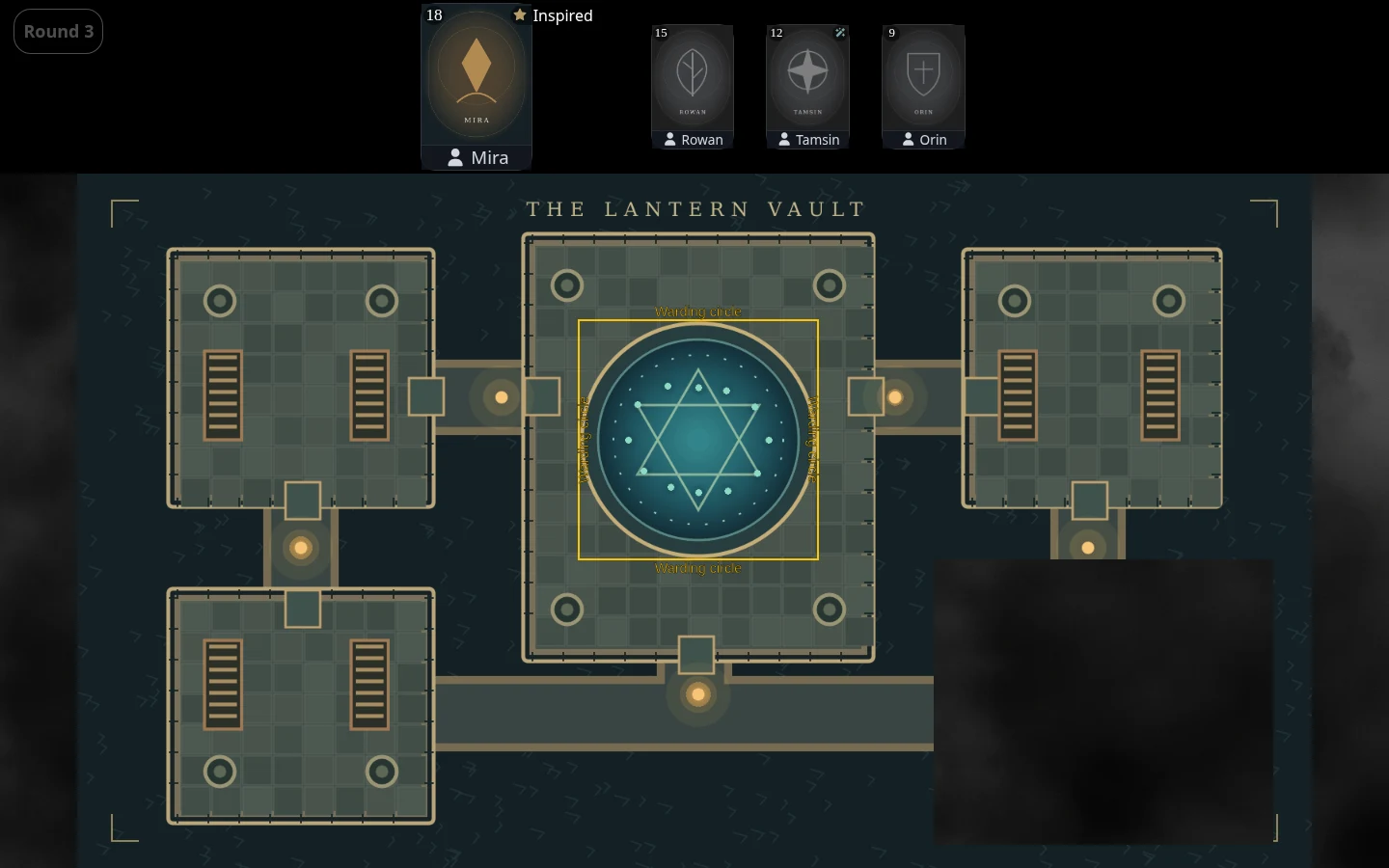
Maps and fog are controlled manually. You decide when to uncover a room, and you can adjust the shared map position. Uploads support still images and animated formats, including MP4 and WebM. This works well when physical miniatures and spoken rulings carry the action at your table.
Decide what stays on the laptop
For a map-and-miniatures session, dm-screen.com can show initiative, the current turn, and conditions alongside the scene. Its character records support running the session; they are not a full character-sheet builder or a D&D rules engine. Fog doesn’t calculate a creature’s line of sight, and the application doesn’t track where you’ve moved a physical miniature.
You can keep using D&D Beyond separately for the parts of your game you already manage there. Using two tools side by side doesn’t mean they synchronize: this workflow doesn’t import your D&D Beyond purchases, characters, or encounters into dm-screen.com. Bring map files you have permission to upload and enter the session details you want displayed.
The game display needs a signed-in account with campaign access and an internet connection. Core tools are free, with optional paid extras. There is no requirement that everyone replace their existing character sheet just to look at the shared TV.
Try one encounter before moving a campaign
Choose a small map and rehearse the same scene in both tools. Put the intended player view on the TV, conceal an unexplored room, then reveal it from the laptop. Change the displayed area and check it from the far side of the table. If you use physical minis, measure a grid square after setting the zoom.
If the library connection is doing most of your preparation for you, D&D Beyond may be the better fit. If your priority is a shared display with uploaded maps, manual reveals, and visible turn information, try the dm-screen.com table-TV walkthrough. Judge the tool by the actions you repeat during a session.