
0.27.0: Give your conditions their own icons
Create custom condition icons, carry conditions between campaigns, ask your assistant to edit automations, and see your campaign limits.
A warding spell can have its own shield, and a homebrew curse can have a symbol your players recognise. In dm-screen.com 0.27.0, conditions support custom SVG icons with colour tones and a live preview. You can also export your conditions and import them into another campaign, artwork included.
Give a condition its own artwork
Edit a condition and open Custom icon. Paste SVG markup to preview it in the condition’s colour. The editor includes a copyable prompt for asking an AI assistant to draw an icon, plus a link to connect your assistant. Connected assistants can use the built-in icon guide to create the artwork directly.
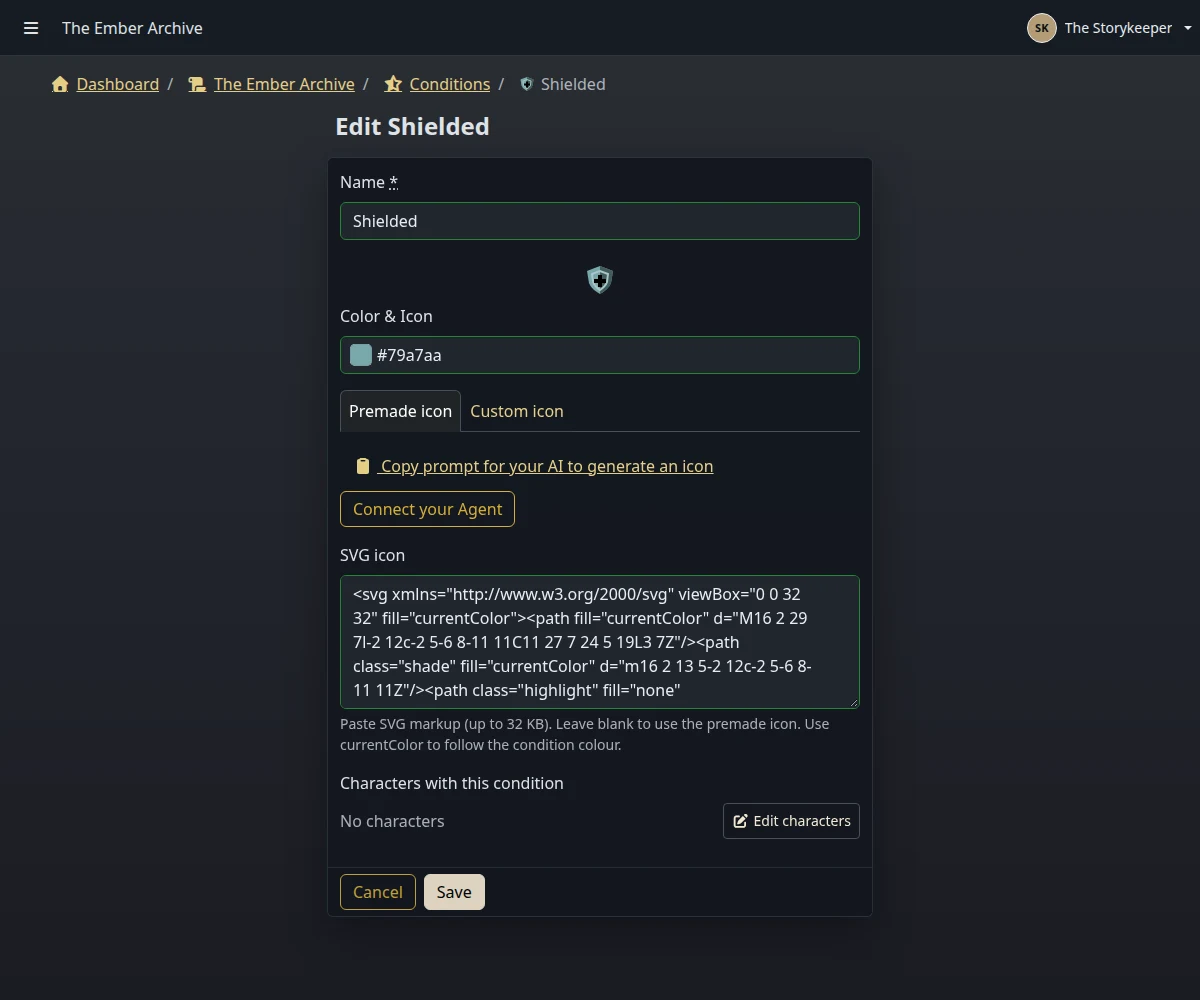
Premade icons remain available. To return to one, clear the SVG in Custom icon and save. Editing conditions follows your campaign permissions, including whether players may manage them.
Take your conditions to another campaign
Use Export on the Conditions page to download a JSON file, then Import in the destination campaign. Transfers run in the background and report what was imported or skipped. Custom artwork travels with the conditions.
Imports overwrite matching conditions by default while keeping their character assignments. Loose matching is also on by default when overwriting, so differences in capitals, spaces, and punctuation match the same condition. Turn off overwriting to skip exact existing names; loose matching is then disabled. Importing requires permission to manage conditions, and new conditions count toward the destination campaign’s limit. Files can be up to 2 MB with at most 2,000 conditions. If any condition cannot be imported, the whole import is cancelled without changes.
Ask your assistant to prepare more of the session
The dashboard sidebar now has Assistant (MCP), with separate connection instructions for ChatGPT, Claude, Gemini, Grok, and other MCP clients.
Connected assistants can create campaigns and create, edit, reorder, or delete member automations. They can read the available conditions, permitted portraits and sounds, and guidance for writing the rules. Your existing permissions and rank allowances still apply. Reordering rules changes their execution priority and which rules run when you have more saved than your allowance permits.
See what your campaign can hold
Campaign owners can see storage usage in campaign settings and open a breakdown by content type, including the largest files they can manage. Calculations run in the background; Recalculate now requests a fresh total.
Free campaigns have 500 MB of storage. Paid owners’ allowances add together: 2 GB per Hero and 5 GB per Legend or Ascendant. Character, map, and condition limits instead use the highest rank among accepted campaign owners:
| Owner rank | Characters | Maps | Conditions |
|---|---|---|---|
| Free | 50 | 5 | 200 |
| Hero | 200 | 20 | 500 |
| Legend | 500 | 50 | 2,000 |
| Ascendant | 2,000 | 200 | 2,000 |
Reveals in free campaigns expire 90 days after upload. Paid campaigns retain reveals within their storage allowance. Campaign limits includes usage bars so you can see how much room remains.
Your own rank also sets how many campaigns you can own: 1 for Free, 3 for Hero, 5 for Legend, and 10 for Ascendant. Joining as a player doesn’t count. Existing campaigns stay accessible after a downgrade.
Gift payers can reassign a gifted rank by email or leave it unassigned. Recipients can release a gift to buy their own rank; billing stays with the payer. Subscription pages also show cancellation dates more consistently, including ranks already scheduled to end.
Try the new character lineup
Game-screen management includes Try the new character list. The optional lineup keeps combat rounds continuous, centres each turn with a gentle one-second movement, and fades earlier turns and later repetitions. Inactive portraits appear in grayscale. Conditions can sit beside portraits or slide out behind them, while characters entering or leaving the screen make room smoothly. The existing character list remains the default.
Open your campaigns and choose Conditions to give one of your recurring effects its own icon. The characters and conditions guide covers using those conditions at the table.