
0.26.0: Build automations for the moments that matter
Build avatar and sound automations with condition tiles, react to combat and character focus, and import files from compatible ChatGPT clients.
Give a character their combat portrait when a fight starts, or play a sound when a rule becomes true. In dm-screen.com 0.26.0, automations have a full-page editor with condition tiles and a choice of avatar or sound effects. You can see what a rule checks and what it will do before saving it.
Build a rule one choice at a time
Open Automations in your campaign. Name your rule, add its conditions, then choose one effect. Each tile opens a drawer where you can change that selection. Choose whether any, all, or none of the conditions must match.
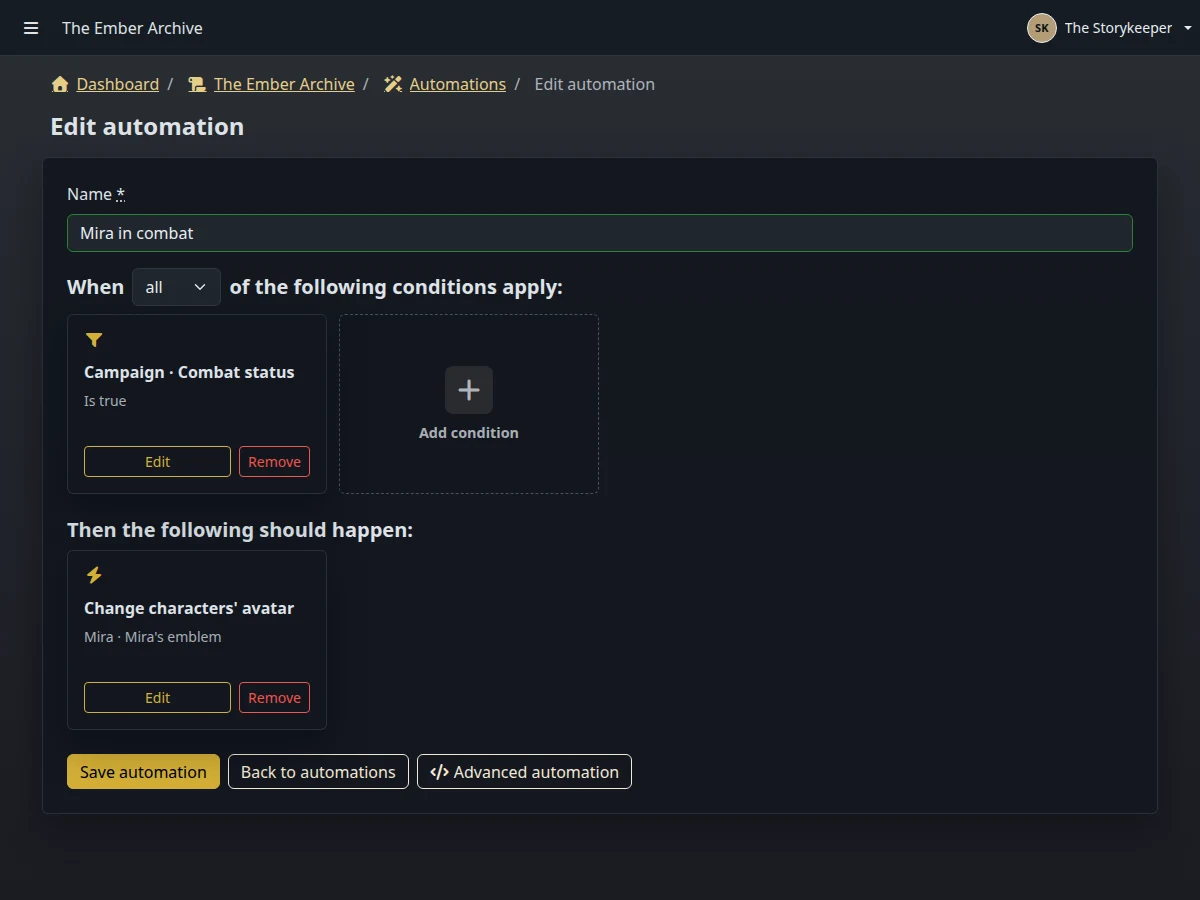
Alongside status conditions and the active turn, rules can now check character focus, whether combat is active, and the campaign’s character-list position. For example, you can give a character a different avatar while they’re focused without changing whose turn it is.
You can also check a live onscreen group instead of choosing characters individually. Match any, all, or no members of that group, then choose how their status conditions should match. Group membership follows who’s currently on screen. An empty group doesn’t match, even when you choose “no members.”
Players can check player characters and change avatars for characters they’ve claimed. Campaign owners can use all campaign characters, including NPCs, and manage members’ automations.
Add a sound cue
Choose Play a sound effect to use a sound from your soundboard. A combat-start cue is one possible use: set a Campaign condition to In combat, then select the sound.
The sound plays on the active game screen when the rule becomes true. During that screen session, keeping the condition true won’t keep replaying it. The rule must become false and then true again before the sound plays again.
Avatar rules still respect a manually selected avatar. Deactivate that manual selection to let automation take over again.
Put your rules in order
Saved automations appear as named tiles with readable descriptions. Drag their handles to change execution order. If more than one matching rule changes the same character’s avatar, the last matching rule wins.
Your rank in each campaign sets the allowance: 1 automation for Free, 6 for Hero, and 20 for Legend or Ascendant. After a downgrade, saved rules beyond the allowance remain editable but don’t run. Reorder them to choose which rules stay active.
Bring ChatGPT files into your campaign
Compatible ChatGPT clients can now pass selected files from a conversation to dm-screen.com for portraits, reveals, and maps. That includes generated images when the client supplies the image as a file. Your assistant can import it and attach it to the appropriate record without asking you to transfer the file bytes yourself.
Availability depends on the client’s file support and your existing campaign permissions. Importing a file alone doesn’t attach it or show it to players. New maps remain fully fogged and off the table.
Existing assistant connections need a one-time reconnect. Open Settings, then Assistant, and use the full connection URL shown there, including its /mcp path. This update binds authorizations to that endpoint. Signing in with only the site’s address won’t load the tools.
Grid detection also handles illustrated maps whose horizontal and vertical grid spacing differs slightly.
Open your campaigns and choose Automations to build your first rule. For more about the characters those rules affect, see the characters and conditions guide.