
0.24.0: Place spell effects and edit maps from your phone
Place grid-based spell effects, edit maps on your phone, and automate character avatars in dm-screen.com 0.24.0.
Mark a spell’s reach on your map without drawing it tile by tile. In dm-screen.com 0.24.0, you can place named radius, line, cone, and cube effects on the grid, then adjust their size and direction. A new phone layout puts map tools within reach when you’re running the table away from your laptop.
Show where the spell reaches
Open Shapes, choose Area effects, and select an effect type. Give it a name and color, set its size, then confirm and position it on the map. On a phone, tap Place when the preview is where you want it.
Lines step through whole tiles, and cones widen by one tile for each 5 ft row. Both leave out the caster’s tile. A cube’s size measures one side, so a 15 ft cube covers 3 × 3 tiles. Source cells and direction arrows help you read a line or cone on both the editor and the player screen; radius effects mark their centre with a plus.
Select a layer to adjust its name, color, size, or direction in a compact popover. You can drag the direction dial or enter an exact angle: 0° points north and 90° points east. Advanced edit gives you separate border and fill controls. If layers overlap, click or tap the selected layer again to reach the one behind it.
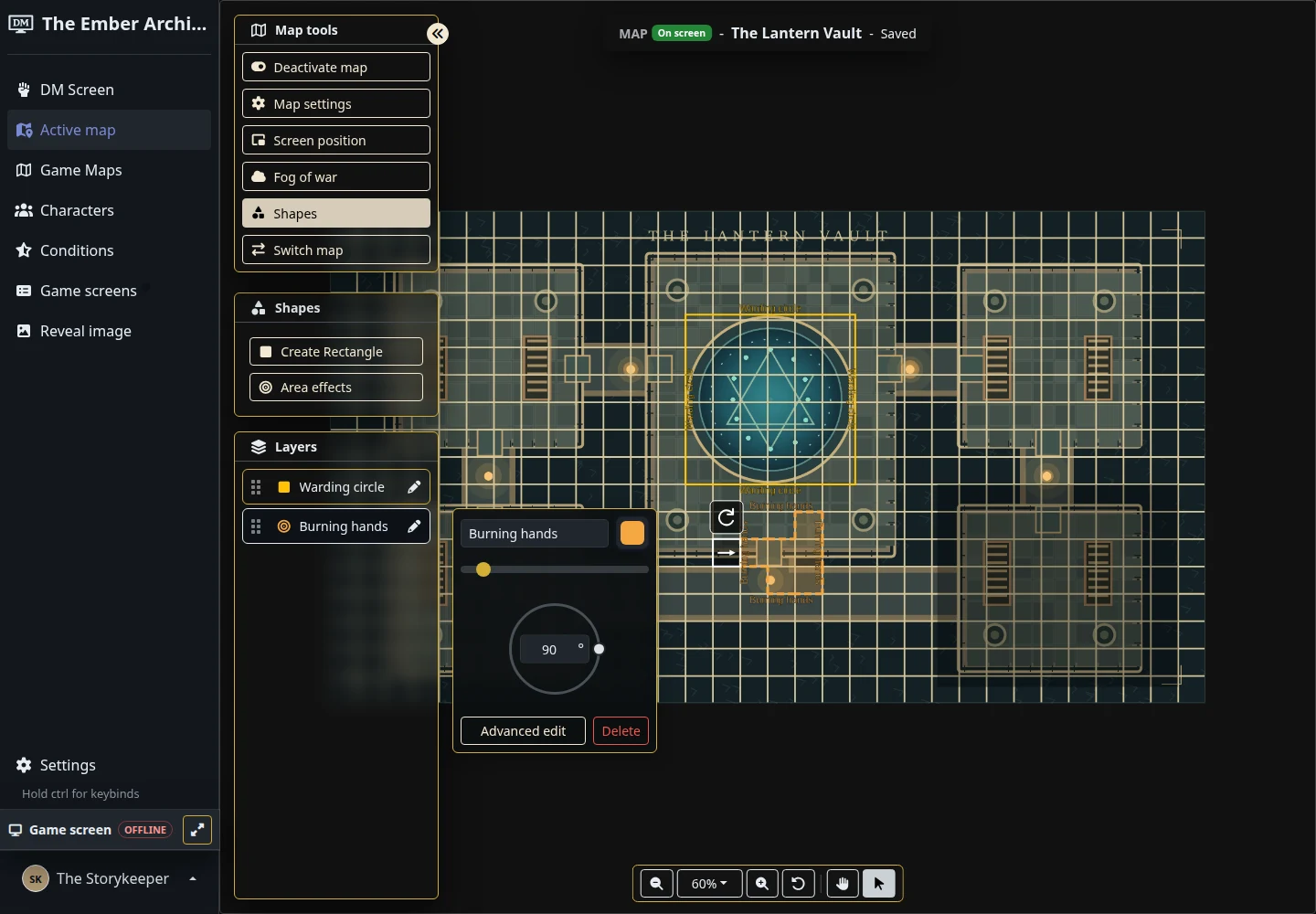
Effects still snap when the grid is hidden. The editor warns you so you can turn the grid on before judging the placement.
Work the map from your phone
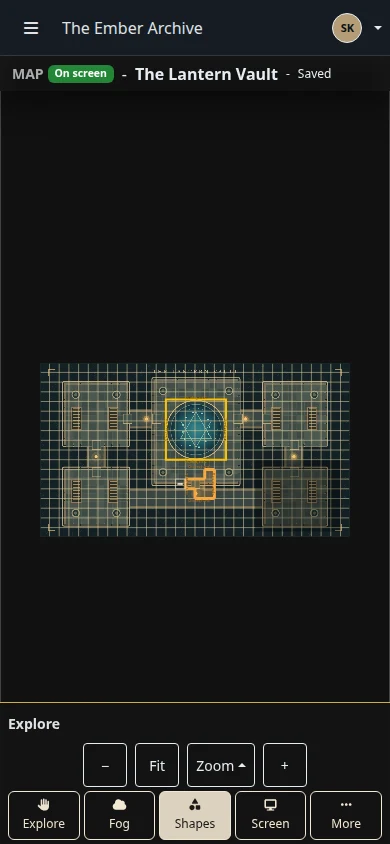
The phone editor has an Explore, Fog, Shapes, Screen, and More dock. Collapse the controls for more room, pinch to navigate, and keep editing your selected layer even when its list is tucked away. Move-up and move-down buttons let you reorder layers without dragging a small row.
Your map view and selected tool stay in place when controls collapse or the viewport changes. If a canvas or screen-position save fails, a Retry button lets you try again.
Let character avatars follow the encounter
Avatar automation can switch a character’s portrait when status conditions match or their turn becomes active. For example, prepare an alternate avatar for a concentrating character and have it appear while that condition is present.
When several rules match, the higher-priority avatar wins. The live rule debugger helps you check what matches. A manually activated avatar takes precedence; deactivate it when you’re ready to resume automation.
Focus a character without moving the turn
DMs and players can use character tile menus to focus a character on the player screen, including during combat. Focus centres the card without changing whose turn is active. Starting combat clears focus.
Tile names and portraits now open character details. DMs can also remove a character from the screen directly from the tile menu.
Fewer interruptions between edits
Browser Back and Forward now work with dialogs and drawers. Shared links can reopen them, and saving returns you to the page that opened the form. Cancelling an upload file chooser keeps the dialog open.
Character portraits and map previews load smaller images first before upgrading to original quality. Grid detection also handles approximate alignment when illustrated grid lines shift across a map. In the editor, grid lines remain visible beneath translucent fog; opaque fog still hides them on the player screen.
Open a campaign map and choose Shapes to try an area effect. The maps and fog guide covers the rest of your map setup.